Having trouble with your broadband connection? Your hub’s lights can provide valuable clues about what’s happening and how to fix it. Here’s a guide to help you interpret the lights on your hub and what actions you can take to resolve any issues.
| Light Status | Meaning | What to Do |
|---|---|---|
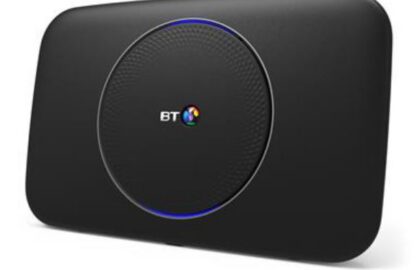
| Blue | Your hub is connected to your broadband okay. | If you can’t get online, it might be your device. Try switching your device off and on. |
| No Light | The power is off, or the lights have been turned off using the Hub Manager. | Check that the hub is plugged in, switched on, and that its lights haven’t been turned off in the Hub Manager. If this doesn’t fix your issue, call us on the number below. |
| Green | Your hub is starting up. | Wait for the hub to complete its startup sequence; the light should turn blue. If it stays green, turn your hub off and on again. If the light still doesn’t turn blue, use a paper clip to press your hub’s factory reset button. If this doesn’t fix your issue, call us on the number below. |
| Flashing Orange | Your hub is connecting to broadband. | Give it at least three minutes to connect. The light will turn blue when your hub is ready. |
| Flashing Purple | Your hub is working but the broadband cable isn’t connected. | Check that the broadband cable (grey ends) is plugged in correctly. If you’re using a filter, check that it’s plugged in correctly too. |
| Orange | Your hub is working but isn’t connected to the internet. | Open a new web browser window and follow the on-screen help wizard to get connected. |
| Red | There’s a problem somewhere. | Turn your hub off and on again. If the light still doesn’t turn blue, use a paper clip to press your hub’s factory reset button. If this doesn’t fix your issue, call us on the number below. |
| WPS Button Flashing Blue | The hub is waiting for you to press the WPS button on your computer or device. | You have two minutes to press the WPS button on your device. |
| WPS Button Flashing Red | The WPS connection failed. | Give it a couple of minutes and try again. |
Managing Your Hub
You can access the Hub Manager to manage your hub settings, change the hub’s name, or update passwords. To do this, type 192.168.1.254 into a browser to view the Hub Manager.
Setting Up Your Hub
Follow the on-screen instructions or refer to your setup guide to ensure everything is correctly connected and configured.