Do you have a new Samsung TV and AirPods? If so, you may be wondering how to connect the two devices. It’s actually quite easy to do, and we will show you how in this blog post. Apple AirPods work with most Samsung TVs, but there are a few things you need to know before trying to connect them. We will cover all of that in this article. So if you want to learn how to connect your AirPods to your Samsung TV, read on!
How to Connect AirPods to Samsung TVs
Apple AirPods, just like any other BlueTooth enabled device, can be paired with any other BlueTooth supporting devices.
You just need to enable the Bluetooth on your TV and then pair it with your AirPods.
On Samsung TVs, steps are as follows:
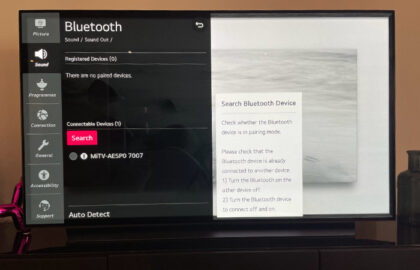
- Go to the Bluetooth settings on your TV and enable Bluetooth.
This is done by pressing “Home” on your remote, select “Settings” on the menu (it’s a wheel gear icon), and then select “Sound” and then “Sound Output”
At this point you should see an option called “Bluetooth Speaker List”. That’s the one you need to highlight. Go on and select that and click enter.
- With the AirPods still in, open the lid of the AirPods case. Next press the white button on the back of the AirPods case. Hold this button down until the LED on the front of your AirPods turns white.
- Your AirPods should now appear in the list of devices on your TV. Highlight them and select to pair with your TV.
You AirPods should now be connected to your Samsung TV!
Instead, there’s this video which explains in detail how to connect the bluetooth devices to a Samsung TV.
Connecting AirPods to Samsung TV – Troubleshooting
AirPods won’t connect to Samsung TV? There are a few things you can try.
- Check to see if the buds have enough power.
- Check if they are already paired with another bluetooth device, such as a another phone or TV
Now that you know how to connect your AirPods to your Samsung TV, go ahead and try it out. If you have any questions or comments, please let us know in the comments below!